

 Menu
Menu- Home
- Fax4Word Faq
- Fax4Word > How to do a Fax Mail-Merge in Microsoft Word 2003
Fax4Word > How to do a Fax Mail-Merge in Microsoft Word 2003
Click Tools > Letters and Mailings > Mail Merge.
.gif)
The Mail Merge Wizard opens. Mail Merge is a six step process.
Step 1:
Specify the document type that you will be creating.
Click "Next: Starting document".
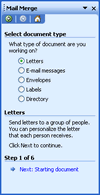
Step 2:
Depending on the selection in Step 1, you will need to specify how to setup the document.
Click "Next: Select recipients".
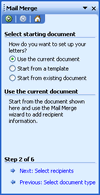
Step 3:
Select recipients. Click Browse to select where contacts are stored.
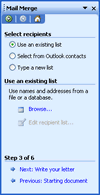
Now select which recipients you want to send to from your contacts. Place a tick in the box beside each recipient that you want to send to.
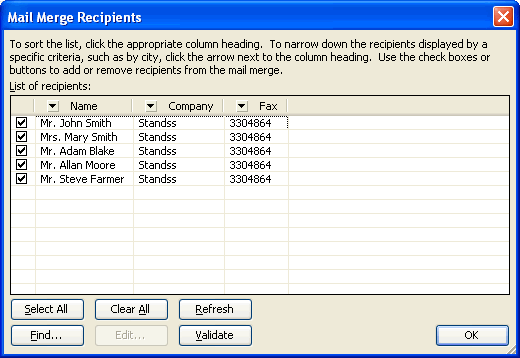
Click OK. This will return you to "Step 3 of 6" screen.
Click "Next: Write your letter".
The Click option that appears will depend on what type of document you are working on. For example
"Next: Write your e-mail message" will appear if you are typing an email.
Step 4:
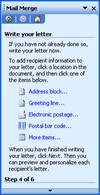
This screen allows to insert Merge Fields into the Merge document.
Merge Fields are placeholders for where the Contact's real information will be inserted by the wizard.
Click "Next; Preview your letters".
To insert Merge Fields
Click in the appropriate place in the document that you want to insert Merge Fields.
Click "More items..." or Click one of the Merge Fields already available (Address block, Greeting line...).
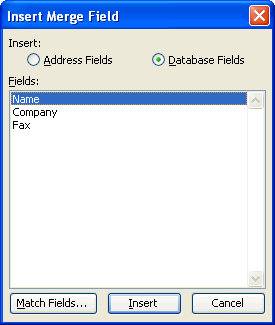
Select the Merge Field from the "Fields" list. Click Insert. Merge Fields will appear as
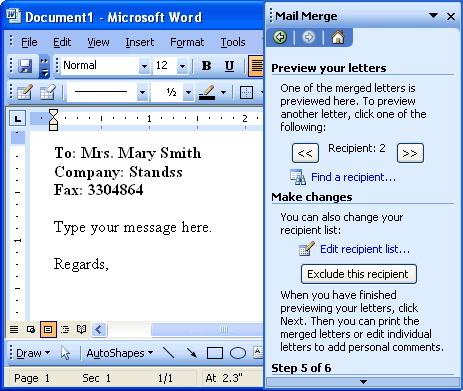
"«Company»" in your document.
Step 5:
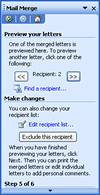
Click "Next Complete the merge".
To preview the merged documents click "<<" and ">>". On the word document, Merge Fields will be replaced by the contacts details.
Step 6:
The merge process is complete.
For Using this document to Fax Merge Click "x" to exit the Mail Merge Wizard. Use this Mail Merged document to send faxes to multiple recipients using the Fax Merge feature in Fax4Word.
How to Fax Merge
Once you have created a Mail Merge document, all you need to do is...
Click "Fax Merge" on the Fax4Word toolbar in MSWord.

In the Fax Merge screen, fill the details from the drop down list and choose the appropriate fields from the list for Name, Company and Number.
Note: Number is required.
.gif)
Click "Fax Only" to send the fax.
Select a printer from the drop down list for "Use this printer to print a paper copy for filing".
To send fax and print a copy of the sent fax click "Fax And Copy" on the Fax Merge screen.
The fax will be sent when "Fax Only" or "Fax And Print" is clicked. To view the status of the faxes being sent, go to Fax Console. (Click Start > All Programs > Accessories > Communications > Fax > Fax Console).
The Fax Merge is completed and multiple faxes are sent with just a few clicks.


Testimonials
"... offers timely and responsive support of every product they have created. Every company should strive to deliver customer and tech support the way this company does."
- Dennis M. Najjar."Using FAX4WORD to send my documents, I met my objective and am already looking for other business uses for your product. THANK YOU SO MUCH!"
- N A "Gary" SchlossOffice Manager / GIS Specialist
"I paid twice as much for winfax pro and your program is by far superior"
- Nancy Trahan"Just downloaded your fax4word and it is a great, simple program to use. Thanks for creating the first fax program that I can actually use."
- Alan H. Barbour"I purchased a $500 program to do the same thing that recently stopped working and the company wanted another $375 to fix it. I'm really glad I found this program that does the same thing. It works great."
- Josh Benedikt